
 EurekaCodes
Chat App Application Guide
How to apply Chat App in EurekaCodes
EurekaCodes Chat APP Service Application Guide
- To apply for services, you'll need to set up your project first.
- For detailed instructions, please go through Quick start first.
1. Go to your workspace

-
Within your project, you can apply for and use various services.
-
When you click the "Add Service" button, it will take you to the service catalog screen.
-
You can apply for the services you need from the catalog list.
-
For this example, please select the "eureka-chats-front" service, which is a chat app service.
-
You can review detailed information about the catalog (service).
-
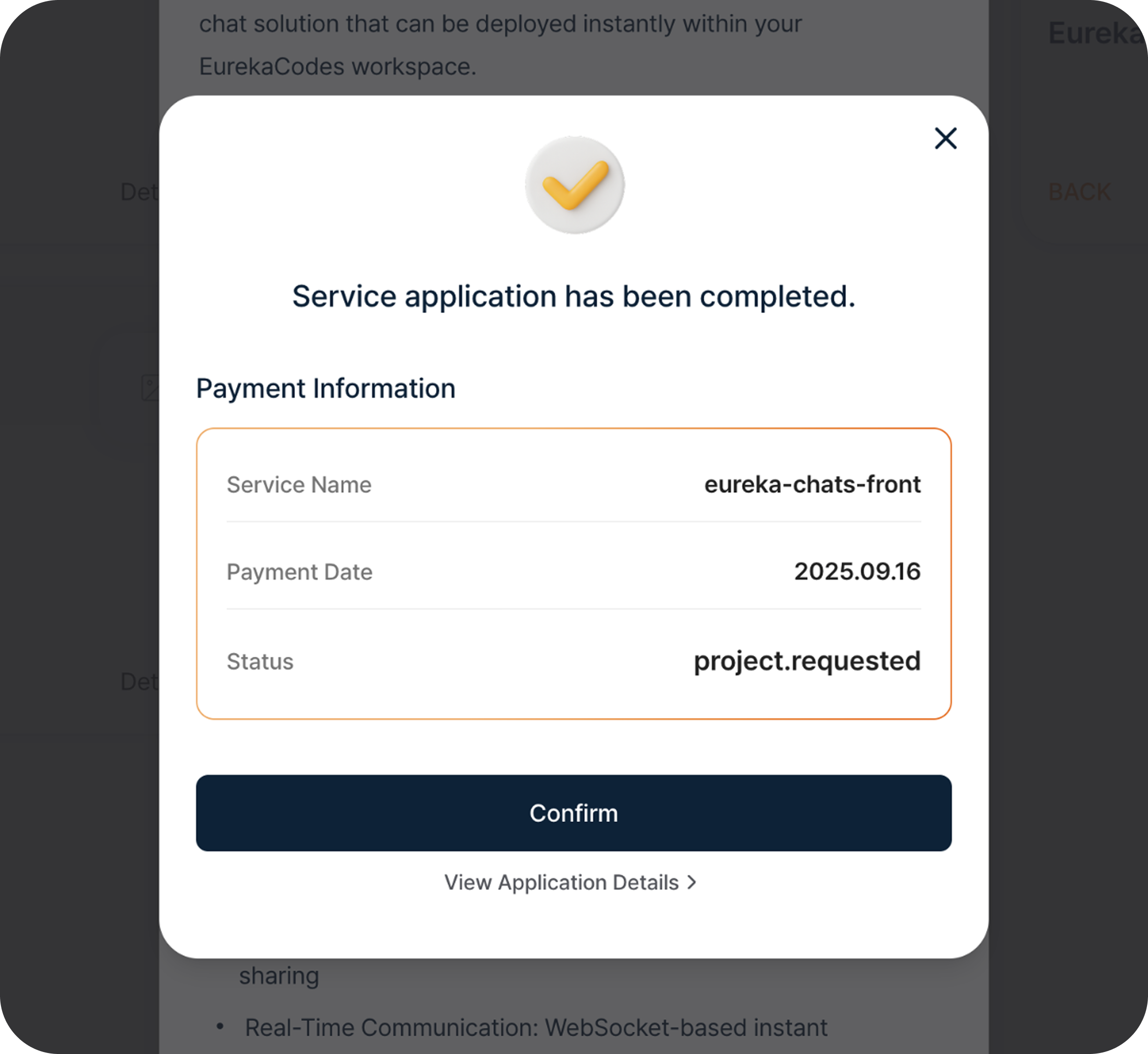
Click the "Add Service" button at the bottom to submit your service application.
-
You can review your service application information.


2. Checking Applied Projects

-
You can check the services that have been added to your project.
-
Depending on the service you applied for, additional services may be installed.
-
Deployment begins as soon as you apply, and it may take about 3-5 minutes to complete.
-
Once deployment is complete, the status will change to "in-use."
-
An "Open Service" button will appear on the right side of the "eureka-chats-front" service.
-
Click the "Open Service" button to access the chat service.

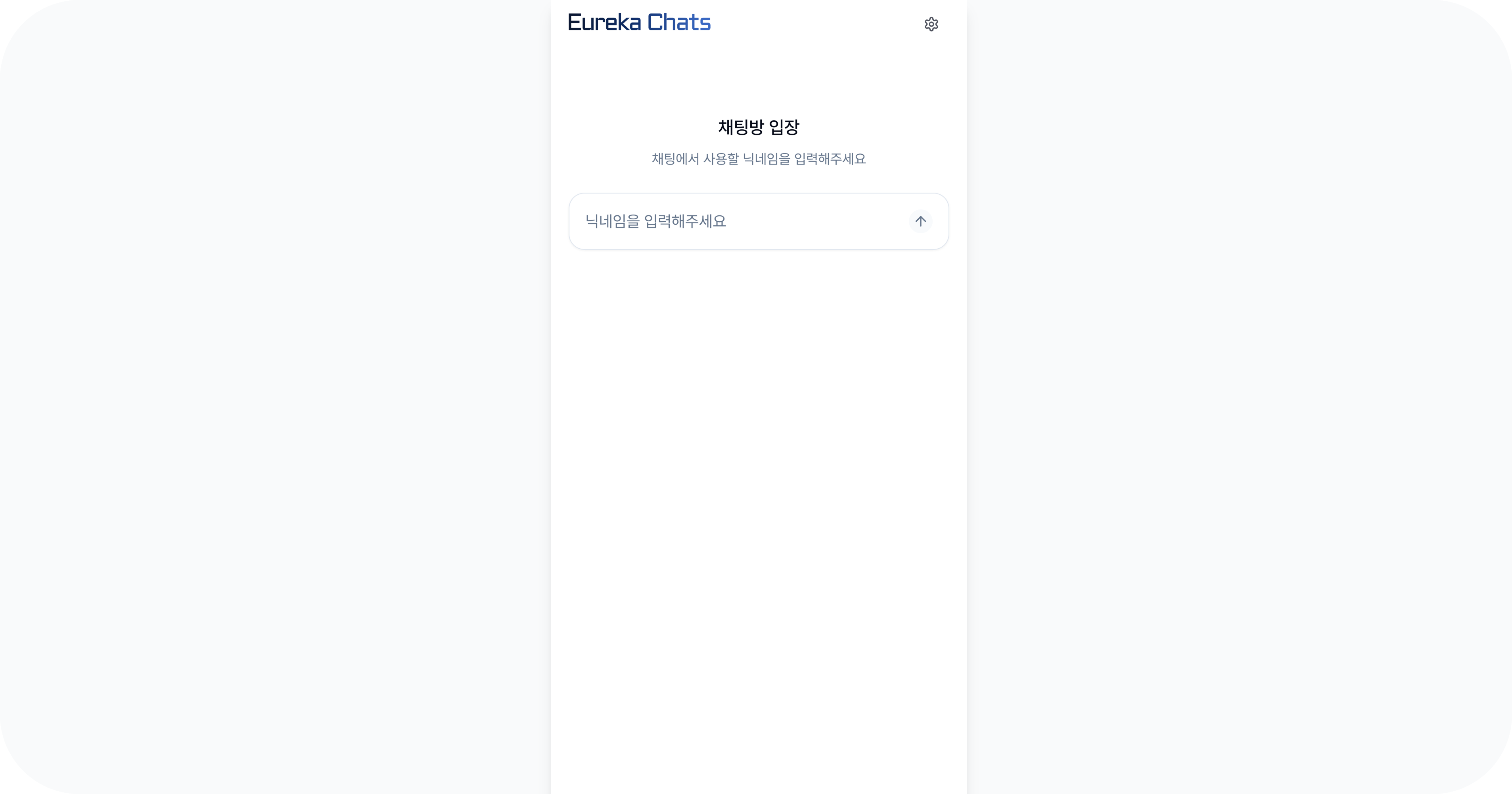
- This service runs in your own separate cloud environment.